Settings
NAS/SMB/Samba + rrClient Service
Problem description:
You are not using domain accounts.
You can access your samba (NAS, Linux or OSX) when you login at your windows workstation.
If you start the rrClient manually, there is no error.
But if you installed the client as service, the rrAutostartservice or the rrClient cannot access the fileserver any more.
Workaround Windows 11
Since 2025 (KB5065426, Windows 11 24H2+) Windows has increased the security for SMB connections.
This mainly affects services/scripts that log in programmatically (e.g. via LogonUser), but can also affect normal mapped drives.
Cause: Recent Windows updates changed the default so that Windows now requires SMB connections to be "signed" (a security check that verifies data wasn't tampered with in transit).
Many NAS devices don't support or enable this by default, so the connection gets rejected.
You can verify if your Windows has this setting enabled.
Start Powershell and enter this command:
Get-SmbClientConfiguration | Select RequireSecuritySignature
Quick Fix:
Start Powershell and enter this command:
Set-SmbClientConfiguration -RequireSecuritySignature $false -Force
This is a permanent, system-wide setting (survives reboot) - it's not per-connection.
It removes the requirement for signed SMB traffic on this computer.
Security impact: without signing, a man in the middle (a compromised computer already in your network) could intercept traffic to that specific fileserver and read or tamper with data in transit.
It does NOT allow hijacking of other Microsoft servers/services on the network, as long as those servers have at least the 2024 updates installed (they enforce signing themselves by default).
Long-term fix:
Instead of weakening the Windows client, enable Security Signature on the NAS/file server itself, so both sides support it properly.
Downside: SMB signing make transfers roughly 20-30% slower if the server's CPU is older/weaker, since signing costs CPU on the server for every connection.
I recommend to ask Claude AI for step-by-step guidance enabling SMB signing on your specific NAS.
And perhaps setting up before/after speed/CPU monitoring.
Workaround Windows 7/8:
Note that this is a workaround for Windows 7/8 and older SMB fileserver.
It should not be required any more.
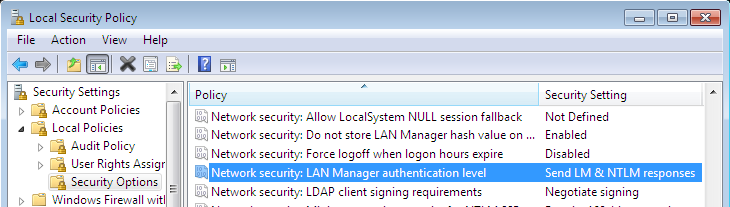
You have to open the Local Security Policy via the windows system control. (or you can type "secpol.msc" as executable to run at the windows start button)Please change the "Network security: LAN manager authentication level" settings on your windows station to "Send LM & NTLM responses":
Windows 10 version 1803+ (April 2018+): Disable automatic reopening of apps on reboot
If the machine restarts due to updates, it re-logins and re-opens all applications that had been opened by the artist.
As this interferes with the rrClients "is someone logged in?" detection, working hours might not be disabled after a restart.
But working hours should be disabled as the artist itself has never logged in after the restart.
To disable this Windows setting, go to Settings > Accounts > Sign-In Options.
Then disable the option "Use my sign-in info to automatically finish setting up my device and reopen my apps after and update or restart."
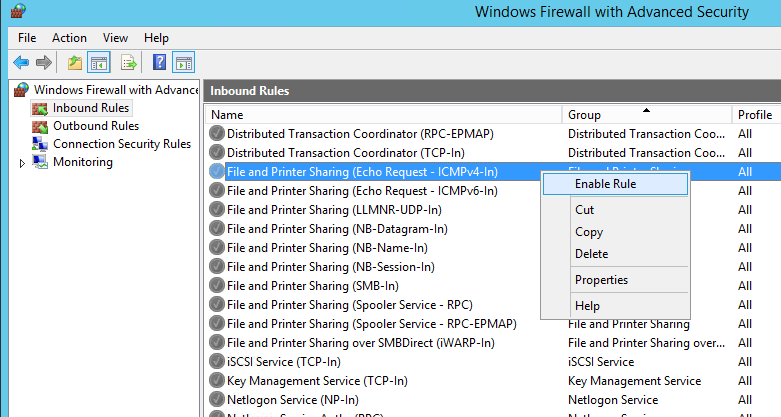
Enable Ping
Some Windows versions are blocking ping by default.
To debug issues and find offline rrClients, you should allow to ping your machines.
Enable administrative shares
Administrative shares are automatic created shares of your drives. They are named \\machine\c$, \\machine\d$ ...
They are really helpful to debug issues.
They are not visible in the Windows explorer.
They can only be accessed by an admin user of the machine (or domain admin).
The source and target machine should both be in the same Windows workgroup or domain.
Windows 7/10:
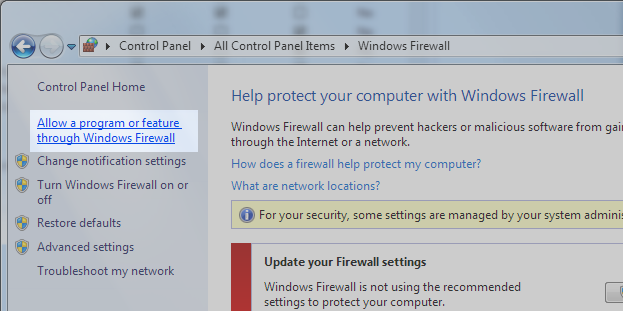
Open "Allow a program or feature through Windows firewall"
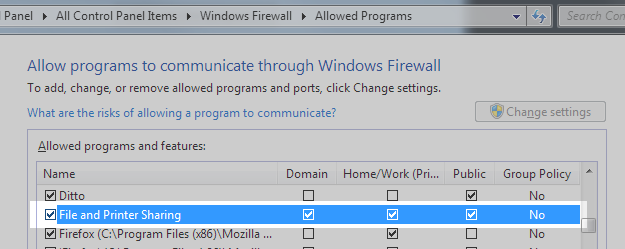
Allow file and printer sharing:
Windows Server 2012:
Open a cmd.exe terminal and enter this commandline:
netsh advfirewall firewall set rule group=”File and Printer Sharing” new enable=Yes